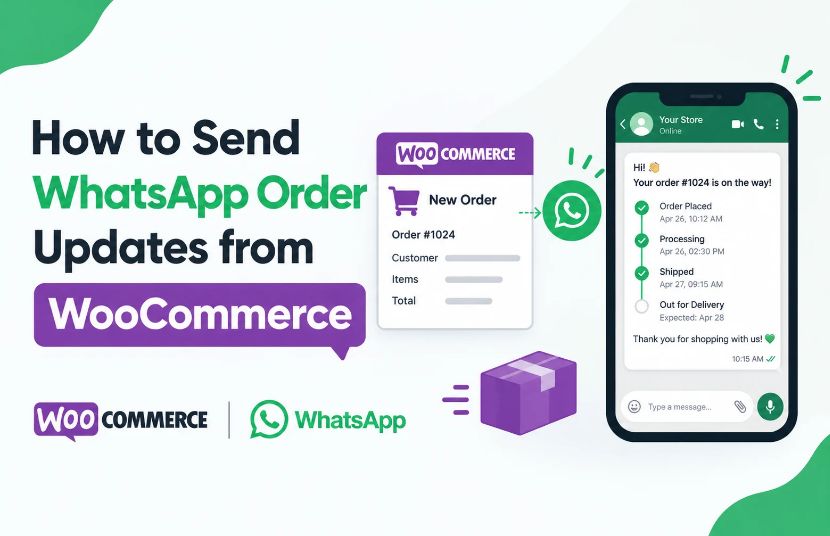
When customers place an order on your WooCommerce store, they want to know whether it has been confirmed, processed, shipped, and delivered. Sending these updates promptly helps customers stay informed and reduces the need to contact your support team for basic order information.
You can send WooCommerce order updates on WhatsApp by connecting your store to a compatible WhatsApp Business API platform, configuring order-event triggers, creating approved message templates, and automating notifications for supported order statuses. The exact setup depends on the integration method and the events supported by your WooCommerce and WhatsApp messaging systems.
With WABA Connect, businesses can explore WhatsApp messaging, APIs, webhooks, and e-commerce integration options to build customer communication workflows. The required WooCommerce connector and order-trigger capabilities should be confirmed before implementation.
In this guide, you will learn how WhatsApp order notifications work, which updates to send, how to set up the workflow, and how to troubleshoot common issues.
WooCommerce WhatsApp order notifications are automated messages sent to customers through WhatsApp when a relevant event occurs in an online store.
For example, a customer may receive a message after placing an order, when the payment is confirmed, or when the order is dispatched. These messages help customers understand what is happening with their purchase without needing to visit the website repeatedly.
Depending on the integration, notifications can be triggered by WooCommerce order statuses, payment events, shipping updates, or other configured actions.
Common examples include:
Not every integration supports all these triggers by default. The available notifications depend on your WooCommerce configuration, shipping or payment integrations, and WhatsApp messaging setup.
Email is commonly used for order communication, but some businesses also want to offer customers updates through WhatsApp. Adding another communication channel can make order information more accessible and help customers contact the business when they need assistance.
Customers can receive important updates through WhatsApp instead of having to search their inbox for every order email. Clear messages help them understand the current status of their purchase.
Questions such as “Has my order been confirmed?” or “Has my package been shipped?” can take up a significant amount of support time.
Timely notifications can answer some of these questions before customers need to contact your team.
Order communication continues after checkout. Sending relevant updates at the right time can make the buying experience more consistent and transparent.
Where supported, messages can include an order reference, product summary, tracking link, or link to the customer’s order details. Only include information that your integration can retrieve accurately and securely.
As order volumes grow, manually sending updates becomes difficult. A configured integration can trigger messages automatically for supported events, reducing repetitive work for your team.
Before setting up WhatsApp notifications, decide which messages customers genuinely need. Start with the most important transactional updates and add other notifications only when they improve the customer experience.
Send a confirmation after WooCommerce records the order and the relevant order details are available.
Example message:
Hi {{customer_name}}, thank you for your order with {{store_name}}.
Your order {{order_number}} has been received. You can review your order details here: {{order_link}}.
We will share further updates as your order progresses.
For orders requiring online payment, send a payment confirmation after the payment status has been verified by your store.
Example message:
Hi {{customer_name}}, your payment for order {{order_number}} has been confirmed.
Thank you for shopping with {{store_name}}. We will keep you informed about the next steps.
Use this message only when the payment event and status are reliably available to the integration.
Let customers know when the store begins preparing their order.
Example message:
Hi {{customer_name}}, your order {{order_number}} is now being processed by {{store_name}}.
We will share another update when shipping information becomes available.
When a supported shipping integration provides dispatch and tracking details, send customers the relevant information.
Example message:
Hi {{customer_name}}, your order {{order_number}} has been dispatched.
You can check the latest shipping information here: {{tracking_link}}.
Thank you for shopping with {{store_name}}.
If your shipping provider or logistics integration supplies a reliable delivery event, use it to notify the customer.
Example message:
Hi {{customer_name}}, your order {{order_number}} has been marked as delivered.
If you need assistance with your order, please contact {{store_name}}.
The message should reflect the actual delivery status reported by the connected system.
If an order is cancelled, communicate the confirmed status and provide the appropriate next step.
Example message:
Hi {{customer_name}}, order {{order_number}} has been cancelled.
If you have questions about the cancellation or any applicable refund, please contact {{store_name}}.
Avoid promising a refund date unless the payment or refund system confirms that information.
The following process explains how to set up automated notifications. The exact screens and configuration options will depend on the connector you choose.
Choose a compatible WhatsApp Business API platform and complete the required business onboarding.
Prepare the business phone number, account permissions, and message templates required for your intended use cases. Confirm that your setup supports the message types and volumes you expect to send.
WABA Connect provides WhatsApp Business messaging and integration capabilities that businesses can evaluate for their communication requirements.
Choose a supported method for connecting your WooCommerce store with the WhatsApp messaging platform.
Depending on the available implementation, this may involve a compatible plugin, a prebuilt connector, an API connection, or webhooks.
Before configuring the connection, verify:
You can review the WABA Connect integrations directory to discuss the available integration options.
Decide which event should trigger each notification.
For example:
WooCommerce event | Possible WhatsApp notification |
Order created | Order confirmation |
Payment confirmed | Payment confirmation |
Order moves to processing | Processing update |
Shipment dispatched | Shipping and tracking update |
Delivery confirmed by carrier | Delivery notification |
Order cancelled | Cancellation update |
These are proposed workflows, not a guarantee that every event is available in every connector. Shipping and payment events may require separate integrations, and some WooCommerce order statuses depend on your store configuration.
Business-initiated WhatsApp messages generally require approved templates when applicable under WhatsApp’s messaging rules.
Create templates that clearly explain the order update and use variables only for supported information, such as the customer’s name, order number, or tracking link.
Keep messages concise and useful. Avoid adding unrelated promotions to transactional notifications, and follow the applicable template category and messaging requirements.
Connect each supported WooCommerce event to the corresponding WhatsApp message.
For example, when a payment confirmation event occurs, the integration can retrieve the relevant order information, select the appropriate template, and send the notification through the configured messaging service.
The workflow should also prevent duplicate notifications and handle failed messages appropriately.
If your chosen integration uses APIs or webhooks, ensure that the implementation validates incoming events and securely handles customer information.
Before activating notifications for all customers, place test orders and verify each supported workflow.
Check the following:
Testing the full journey helps prevent incorrect order updates from reaching customers.
After launch, monitor available delivery statuses, failed messages, customer replies, and support enquiries.
Review whether the notifications are useful and whether customers still need to contact support for information that should already be available in the message.
Use these findings to improve message timing, content, and workflow reliability.
WABA Connect offers WhatsApp Business API messaging, APIs, webhooks, and integration options for businesses looking to connect messaging with their existing applications. Its integrations directory lists WooCommerce among its e-commerce integrations.
These capabilities can form part of a workflow for customer communication and order notifications, subject to the connector’s supported features.
With WABA Connect, your team can discuss requirements such as:
If you are planning a new integration, start with the WooCommerce WhatsApp integration page once the dedicated landing page is live. It should cover the overall integration solution, while this article focuses specifically on order notifications.
You can also book a WABA Connect demo to discuss the supported features and your store’s requirements.
Avoid sending a notification every time an internal field changes. Select events that provide meaningful information to the customer.
A webhook or integration may receive the same event more than once. Use event tracking or idempotency controls where available so that one order event does not generate multiple identical messages.
Use verified WooCommerce and connected-system data. Do not send a shipping confirmation before the carrier has confirmed dispatch or a payment confirmation before the payment status is verified.
Follow applicable WhatsApp policies, consent requirements, template rules, and customer communication preferences. Provide appropriate ways for customers to manage promotional messaging separately from necessary service communications.
Include only the information needed for the notification. Use secure links for order details and avoid exposing sensitive customer or payment information in messages.
Monitor delivery failures and create a process for resolving them. A failed notification should not silently leave a customer without an important update.
Order confirmations and shipping updates serve a different purpose from promotional campaigns. Keep transactional notifications focused on the order and use the appropriate approved messaging setup for each category.
Check the integration connection, authentication credentials, message template status, recipient number format, and API response. Also verify that the order event actually occurred.
Check whether the same webhook event is processed repeatedly or whether multiple automation rules are listening for the same order status change. Add duplicate-event protection where possible.
WooCommerce may not know the actual carrier status unless a shipping integration provides that information. Confirm that the carrier integration sends the event and that the notification workflow can access it.
Review the mapping between WooCommerce order fields and message-template variables. Test with orders that have different customer details, product counts, and payment statuses.
Check webhook delivery, integration logs, queue processing, API responses, and any rate or retry limits that apply to the configured service.
WABA Connect lists WooCommerce among its e-commerce integrations and provides WhatsApp messaging and integration capabilities. Confirm the specific order triggers, templates, and automation features available for your intended implementation before going live.
Automated business messaging at scale generally uses the WhatsApp Business Platform or a compatible provider. The exact requirements depend on the messaging method and integration you choose.
Yes, if your shipping system provides reliable dispatch and delivery events and your WhatsApp integration can use those events to send notifications.
Yes, when the selected integration supports the relevant order event and WhatsApp messaging action. The setup may require a compatible plugin, connector, API, or webhook workflow.
Connect WooCommerce to a compatible WhatsApp Business API platform, configure supported order-event triggers, create approved message templates where required, and test the automation before launch.
Costs depend on the WhatsApp messaging charges, provider pricing, message category, recipient market, and the integration or software you use. Review the current provider pricing and applicable WhatsApp charges before estimating costs.
Use event tracking or idempotency controls in the integration, review overlapping automation rules, and test how repeated webhook events are handled.
Promotional messaging must follow the applicable WhatsApp policies and consent requirements. Keep transactional notifications focused on order information and manage promotional campaigns through the appropriate approved messaging workflow.
ENQUIRY NOW
For more information about the WhatsApp Business API solutions we provide, call now. Let’s together unlock the full potential of WhatsApp for your business.
Related articles
info@wabaconnect.com
+91 799 135 8888